
In a large/critical network, it is fundamental backup the Cisco configuration for two reasons:
- Rollback configuration
- Restore configuration in case of a broken router
There are two ways to backup: manually (using write command each time that you would save running configuration) or automatically (using software like Ciscoworks, HP OpenView, … ).
In this tutorial, I would explain a different method to backup configuration: the archive command.
Introduced into Cisco IOS Release 12.3(4)T, the archive command permits to save a copy of the current running configuration to different path: ftp, http, https, rcp, scp, tftp servers. Moreover the archive command has other features, but in this article I would use only two of these:
- time-period: it sets the time increment for automatically saving an archive file of the current running configuration in the Cisco IOS configuration archive.
- write-memory: it enable automatic backup generation during write memory; for instance, when I use the ‘write’ command the archive command will be invoked automatically.
Example: Implement and test archive command
Suppose to have a network (192.168.217.0/24) with an FTP-Server (.1). It is required to save the running configuration to the FTP-Server each day (1440 minutes). The FTP-Server has an FTP account with username: cisco and password: lab.
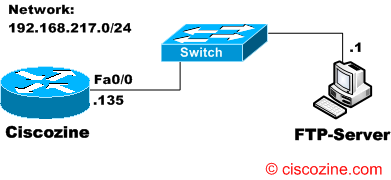
First of all, it is required access to the archive configuration mode:
Ciscozine(config)#archive
Now it is possible define the destination path. In this example, I use the FTP protocol to send the running configuration; the name ‘$h’ instructs the system to use the router hostname when naming the archived configuration (in this case $h is equal to Ciscozine).
Ciscozine(config-archive)#path ftp://cisco:lab@192.168.217.1/$h
To instruct the router to save the configuration each day (1440 minutes) and to enable automatic backup generation when write memory command is typed, use:
Ciscozine(config-archive)#time-period 1440
Ciscozine(config-archive)#write-memory
To see how many configurations are been saved use the command ‘show archive’:
Ciscozine#sh archive
The next archive file will be named
                      ftp://cisco:lab@192.168.217.1/Ciscozine-17
Archive #  Name
0       ftp://cisco:lab@192.168.217.1/Ciscozine-15
1       ftp://cisco:lab@192.168.217.1/Ciscozine-16 <- Most Recent
2       ftp://cisco:lab@192.168.217.1/Ciscozine-2
3       ftp://cisco:lab@192.168.217.1/Ciscozine-3
4       ftp://cisco:lab@192.168.217.1/Ciscozine-4
5       ftp://cisco:lab@192.168.217.1/Ciscozine-5
6       ftp://cisco:lab@192.168.217.1/Ciscozine-6
7       ftp://cisco:lab@192.168.217.1/Ciscozine-7
8       ftp://cisco:lab@192.168.217.1/Ciscozine-8
9       ftp://cisco:lab@192.168.217.1/Ciscozine-9
10       ftp://cisco:lab@192.168.217.1/Ciscozine-10
11       ftp://cisco:lab@192.168.217.1/Ciscozine-11
12       ftp://cisco:lab@192.168.217.1/Ciscozine-12
13       ftp://cisco:lab@192.168.217.1/Ciscozine-13
14       ftp://cisco:lab@192.168.217.1/Ciscozine-14
Ciscozine#
To display the differences between two config files use the ‘show archive config differences’; for instance, to find the differences between the startup-config and the ‘Ciscozine-8’ file, type:
NEW-CISCOZINE#show archive config differences nvram:startup-config
    ftp://cisco:lab@192.168.217.1/Ciscozine-8
Loading Ciscozine-8 !
[OK - 717/4096 bytes]

Contextual Config Diffs:
+hostname Ciscozine

-hostname NEW-CISCOZINE
NEW-CISCOZINE#
As you can see, there are two differences: the hostname saved in the startup-configuration file (NEW-CISCOZINE) is different from the Ciscozine-8 file (Ciscozine).
Remember: If the router is reloaded, the system will restart to save the configuration with the counter equal to one (for example Ciscozine-1). So the previous configurations will be overwritten!
References: http://www.cisco.com/…/cfrgt_01.html#wp1094403

That’s really useful! I like these blogs about these somewhat hidden commands.
Cheers
Nice post. I love it…
i will love that some helps me how to
camcofcoa@gmail.com
i do all archive configuration and TFTP server take backup but suddenly Backup stop
good post.
I have integrated the KRON Policy with Archive configuration and have obtained good results in the routers, I recommended you tray it, this combination provide greater benefits, but is my opinion user. ;).
Yes sure!
I have write an article about kron feature : http://www.ciscozine.com/cron-no-kron/